How to use the calculator
Keys, expressions and display modes
Click a calculator key or click the case and type numbers, operators, parentheses and decimals. Enter calculates, Escape clears, and the arrow keys edit an entry or navigate a menu. The Expression field also accepts named functions and variables. Use it for longer expressions or to edit a recalled calculation.
Press 2nd to use a teal secondary label. Consecutive presses of sin, cos or tan cycle through the function, inverse function, hyperbolic function and inverse hyperbolic function. The π e i key cycles through those constants. The variable key cycles through x, y, z, t, a, b, c and d. Once you enter another key, the cycle stops.
MODE selects degrees, radians or grads; normal, scientific or engineering notation; floating or fixed decimals; real, rectangular or polar complex results; number base; and Classic or MathPrint style display. The simulator renders fractions, roots and powers in textbook form. Classic displays a linear expression. When editing within a MathPrint expression, the linear cursor view shows the token that will change.
Fractions, roots and answer toggle
For one half, enter 1, n/d, 2 and ENTER. You can also press n/d first to start a fraction template. Right or Down moves to the denominator, and Right closes the template. The comma entry key separates arguments in functions. The simulator's editable notation is frac(numerator, denominator). The MATH menu offers mixed(whole, numerator, denominator).
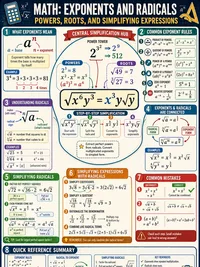
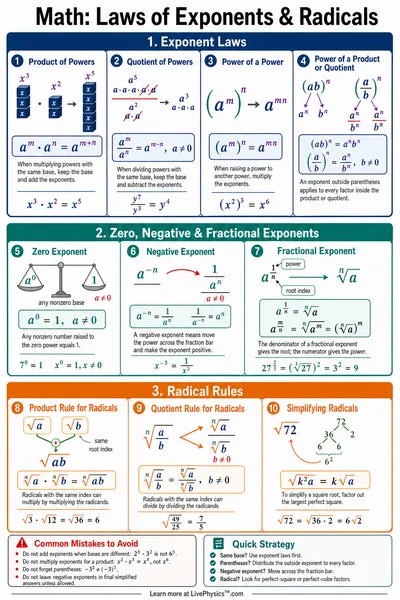
Use x² for a square and 2nd then x² for a square root. The power key enters an exponent. Its second function opens an indexed root, with the index first. The Expression field accepts root(3, -8) for the cube root of negative eight.
The answer toggle switches between a decimal approximation and a recognized fraction, multiple of π or simple square root. Recognition is numerical and has a bounded search. It does not perform general symbolic algebra. Results from typed fractions and roots start in their recognized form when available.
Solvers, calculus and tables
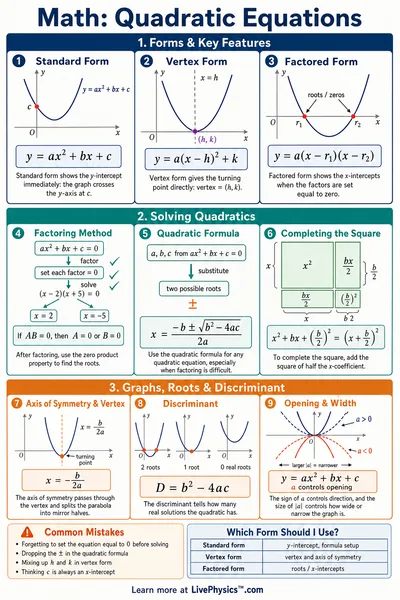
Press 2nd then sin for num-solv, 2nd then cos for poly-solv, or 2nd then tan for sys-solv. The numerical form solves for x using a starting guess and bounds. Polynomial forms solve quadratics and cubics. Linear-system forms solve two or three equations. Review the coefficients before pressing ENTER or Calculate.
The derivative and integral secondary keys open forms for a real function of x. Supply the point for a derivative, or the lower and upper bounds for a definite integral. A table evaluates a function over a bounded set of x values. Edit its expression, start and step to explore another function.
Use arrows to choose a form field and calculator keys to replace its value, or edit the labeled fields directly. ENTER calculates the form. After calculating, Up and Down scroll through its results. CLEAR returns to editing. Return to calculator closes the form. Example forms contain sample inputs so you can learn a workflow before changing the numbers.
Matrices, vectors and statistics
Press 2nd then MATH for matrices. Edit A, B or C with dimensions from 1×1 through 3×3, then enter its values as a comma-separated list in row order. The menu inserts a stored matrix or a determinant, inverse, transpose, echelon or reduced-echelon function. For example, det(matA) finds the determinant of A. Matrix and vector entries are real numbers.
Press 2nd then n/d for vectors. Define u, v or w with two or three components. The menu offers dot products, cross products and magnitude. A cross product requires three components. Matrix multiplication and scalar multiplication are supported when dimensions match.
DATA edits three lists, L1, L2 and L3, with up to 42 values each. Enter comma-separated values. Press 2nd then DATA for statistics, regressions and distributions. Statistics accept a list name or entered values, with optional whole-number frequencies from 0 through 99. Zero-frequency observations do not contribute. The regression menu offers linear, quadratic, cubic, quartic, logarithmic, exponential and power models.
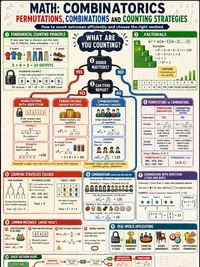
Distribution functions cover normal density, normal area and inverse normal, plus binomial and Poisson probabilities. Their arguments appear in function notation. The combinations example shows how to enter multiple arguments using the comma key.
Memory, operations and science functions
STO→ stores the current result or expression in one of eight variables. Press 2nd then STO→ to recall a stored value. The variable key inserts a variable into an expression. The up and down arrows recall home-screen calculations. Press 2nd then x⁻¹ to clear the eight scalar memories.
The set op secondary function defines an operation using ans, such as ans*3. Press the op secondary function to apply it, and press it again to repeat. Constants and conversions have their own menus. Constants use the values in the reference guide, including its older scientific constant values. Unit conversions include length, mass, area, volume, temperature, speed, pressure, power and energy.
Choose rectangular complex mode before computing nonreal values. Use i from the π e i key. The complex menu provides conjugate, real part, imaginary part, magnitude and argument. Number-base modes support integer calculations and base conversions. The simulator uses signed 32-bit integers and two's-complement output for negative values. Retained values that need decimal or complex display show a format label when the current mode cannot represent them.
Worked examples and sharing
Choose an example to start a fresh calculation. Follow highlights the next key and waits for you. Play step switches to Watch, presses the remaining keys and pauses at the step boundary. Pause preserves progress. Show me completes a step immediately. Back and Restart example rebuild earlier steps.
Copy link includes calculator keys, menu selections and edited fields, or the current example step and its progress. Random calculations replay deterministically. Very long sessions stop updating the share link and show a notice. Reset calculator starts a new session.
Supported features and limits
The keypad, menus, form layouts, history and template navigation are adapted for the web and can differ from the handheld. The separate comma and editable fields make longer expressions easier to enter. Calculations use floating-point arithmetic with a ten-significant-digit display, so rounding and last digits may differ. Exact-result recognition is limited to selected fractions, π multiples and simple radicals.
Numerical solvers return a solution near the starting guess when they converge; they do not enumerate every root. Numerical derivatives and integrals can be inaccurate at discontinuities, singularities or poorly scaled inputs. Singular and nearly singular systems need special care. Expression length, nesting, data dimensions, table rows and numerical iterations are bounded to keep the calculator responsive.
Automatic power down, held-key timing, exact firmware screen layouts, unrestricted symbolic algebra and graph plotting are not reproduced. Constants follow the reference guide rather than current SI updates. The guide's dimensionally inconsistent horsepower and energy label is implemented as horsepower to kilowatts, with joules to kilowatt-hours available separately.
See the Texas Instruments TI-36X Pro guidebook for complete handheld instructions and the official product page for model specifications.
Related calculators
Try the TI-30XIIS calculator for a simpler two-line scientific interface, the TI-84 Plus CE calculator for color graphing, or the TI-83 Plus calculator for monochrome graphing.
Use this simulator for practice and homework. Follow your teacher's or exam provider's calculator rules during a test.
TI-36X Pro and MathPrint are trademarks of Texas Instruments. LivePhysics is not affiliated with or endorsed by Texas Instruments.